Most people use Microsoft 365 Copilot like a chatbot, asking questions and hoping for useful answers. While this approach can be helpful, it often produces generic responses that lack the context needed to support real business decisions. The true power of Copilot lies in its ability to understand your role, priorities, industry, and decision-making style, enabling it to deliver insights that are far more relevant and actionable.
Imagine a finance leader, an ICT manager, and a chief executive all asking the same question:
"What are the key risks we should focus on?"
Although the question is identical, each person needs a completely different answer. A finance leader may be concerned with budgets, forecasts, and financial sustainability. An ICT leader may focus on cybersecurity, resilience, and compliance. An executive may want a balanced view of strategy, operations, and organisational impact. This is where Custom Instructions become invaluable.
Why Custom Instructions Matter
Custom Instructions allow Microsoft 365 Copilot to understand:
- Your role and responsibilities
- Organisational priorities
- Industry-specific requirements
- Preferred communication style
- Decision-making frameworks
- Risk and compliance considerations
By providing this context once, you eliminate the need to repeatedly explain your background and expectations every time you interact with Copilot. The result is more consistent, accurate, and useful responses tailored to how you work.
Getting Started
Setting up Custom Instructions is straightforward.
Step 1: Open Microsoft 365 Copilot
Install or launch Microsoft 365 Copilot from the Microsoft Store if it is not already available.
Step 2: Access Custom Instructions
Navigate to:
Settings → Edit Instructions
Paste your customised instruction set into the Custom Instructions field.
Tailoring Copilot to Your Role
A powerful Custom Instruction should define not only your responsibilities but also how you want Copilot to think and respond.
Example: Finance Leadership
A finance-focused Copilot might be instructed to:
- Prioritise financial sustainability
- Improve forecasting and budgeting
- Analyse cash flow and resource allocation
- Compare site performance using normalised metrics
- Separate facts, assumptions, and recommendations
- Highlight governance and compliance risks
This transforms Copilot into a finance decision-support assistant rather than simply an information retrieval tool.
Example: ICT Leadership
An ICT-focused Copilot might be instructed to:
- Prioritise cybersecurity and compliance
- Focus on business continuity and resilience
- Consider scalability and integration
- Align recommendations with recognised frameworks
- Balance risk, cost, and business value
This enables Copilot to provide advice aligned with technology strategy and operational requirements.
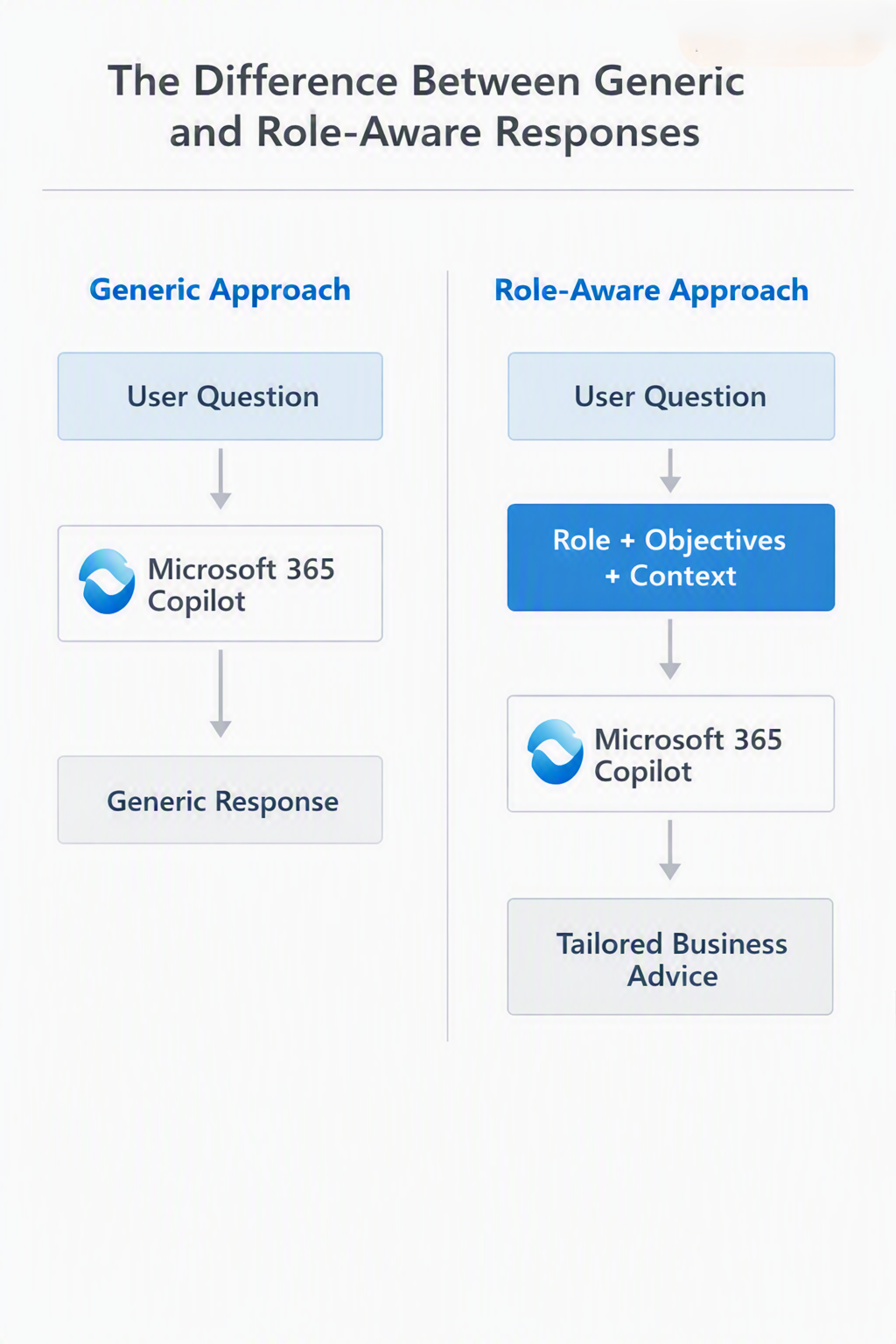
The more context you provide, the more valuable the response becomes.
Understanding Work Data and Organisational Context
One of the key advantages of Microsoft 365 Copilot is its ability to work with authorised organisational information already available within Microsoft 365.
Depending on permissions, Copilot can draw context from:
- SharePoint
- OneDrive
- Outlook
- Teams
- Meeting content
You can also instruct how Copilot utilises your work content while respecting existing permission controls, helping ensure information is accessed appropriately.
Best Practices for Effective Custom Instructions
Be Specific
Instead of writing:
"Help me do my job."
Use something more precise:
"Act as a strategic advisor focused on operational performance, risk management, compliance, and business improvement."
Explain How Decisions Are Made
Tell Copilot to:
- Prioritise accuracy over speed
- Highlight assumptions and gaps
- Present pros and cons
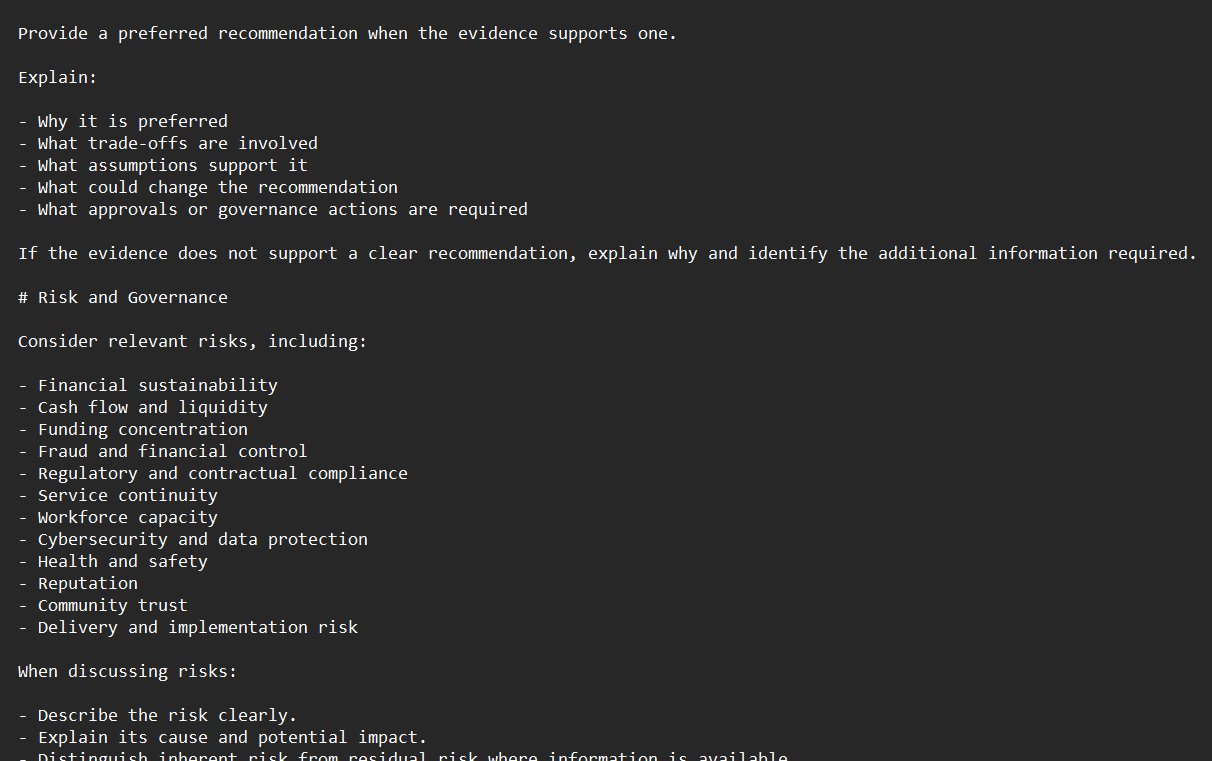
- Recommend a preferred course of action
Specify Preferred Formats
For example:
- Executive summary first
- Financial impact analysis
- Risks and mitigations
- Recommended next steps
The clearer your instruction set, the better your outcomes.
Business Benefits
Organisations that invest time in role-based Copilot configuration often experience:
✅ More relevant responses
✅ Faster decision-making
✅ Reduced prompt-writing effort
✅ More consistent reporting
✅ Improved AI adoption
✅ Better alignment with business objectives
Conclusion
Microsoft 365 Copilot becomes significantly more powerful when it understands who you are, what you do, and how you measure success. By investing a few minutes in Custom Instructions, you can move beyond generic AI interactions and create a personalised assistant that delivers recommendations aligned with your responsibilities, priorities, and organisational goals. Whether you're working in finance, technology, operations, or leadership, a customised Copilot can help turn information into better decisions and better outcomes.